
12 November 2026 · VRAMfarm team
vLLM vs Ollama vs llama.cpp: which to run your LLM with, and the commands
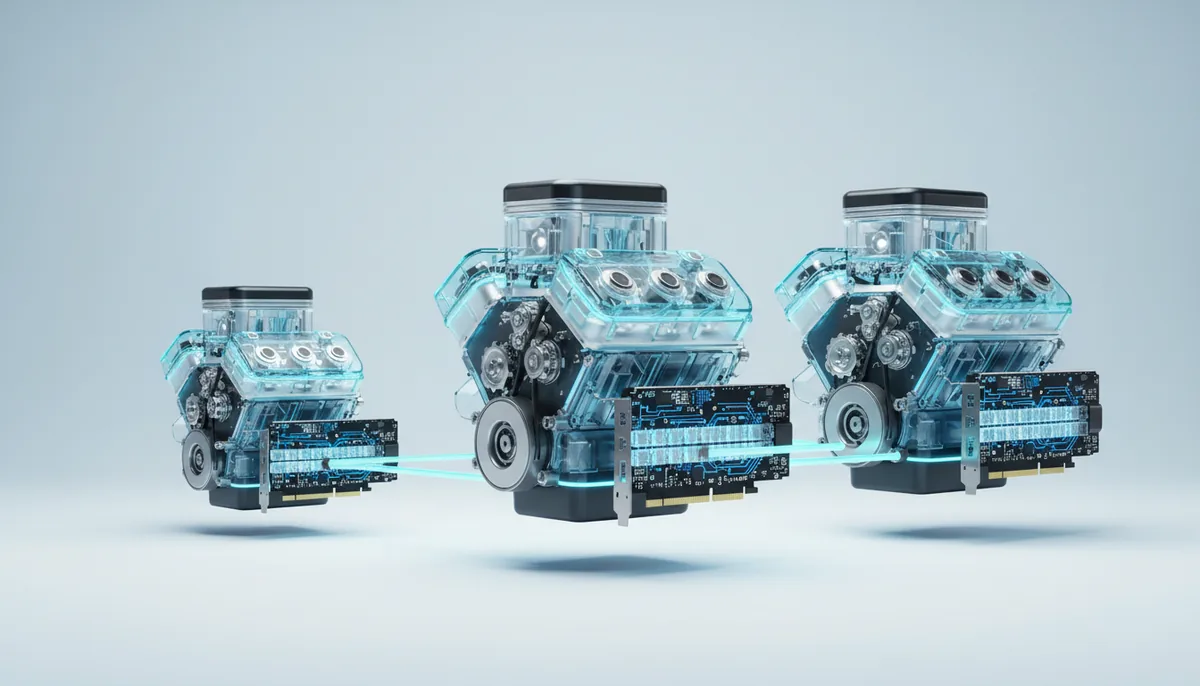
If you are the only person talking to the model, the three are about equally fast and Ollama takes the least work: one install command and one ollama run. If a script fires 50 requests in parallel or ten colleagues use the same model, vLLM gets roughly 5–10 times more total tokens per second out of the same card, and the gap grows with load. llama.cpp, the engine Ollama grew out of, is the one to pick when you want to control every byte: exact quantisation files, cache types, which layers stay on the CPU.
All three run on a rented server with an empty PyTorch image, and all three offer an OpenAI-compatible API. The differences are in batching, file formats and how they treat memory.
The short version
| Ollama | llama.cpp | vLLM | |
|---|---|---|---|
| Best for | One person, quick start, a private chat | Control, odd sizes, models bigger than the card | An API for apps, several users, batch jobs |
| Install | One script | Compile with CUDA | pip install vllm, matched to the CUDA version |
| Model formats | GGUF, from its own library or Hugging Face | GGUF | Original BF16, FP8, AWQ, GPTQ, bitsandbytes, NVFP4 on Blackwell |
| Memory | Takes what the model needs; spills to CPU if short | Exactly what you set; offload by layer | Reserves 90% of the card at start |
| Parallel requests | One to a few at a time (OLLAMA_NUM_PARALLEL) |
Slots, continuous batching | Continuous batching, dozens to hundreds |
| OpenAI-compatible API | Yes, port 11434, /v1 |
Yes, llama-server |
Yes, /v1 |
| Several GPUs | Splits layers | Splits layers or rows | Tensor and pipeline parallel |
| Start-up after download | Seconds | Seconds | 1–5 minutes |
Ollama is built on the same GGML foundations as llama.cpp, so their file formats, quantisation levels and single-user speed are close. What Ollama adds is convenience: a model library with short names, automatic GPU detection, models loaded on demand. What it hides is control, which you notice the day a model runs slowly and you need to know why.
Speed: one conversation vs fifty
For a single conversation, generating text is limited by memory bandwidth: for each new token the card reads the whole model once. The runtime matters less than the size of the file. That leads to a result people don’t expect: vLLM serving an 8B model in its original BF16 (16 GB) is slower for one user than Ollama with a 4-bit file (5 GB), simply because it reads three times as many bytes per token.
Batching changes the picture. vLLM reads the weights once for a whole batch of requests and adds new requests to the running batch as old ones finish, so total output grows almost linearly with users until compute or cache memory runs out. Planning ranges for an 8B model on an RTX 4090, from bandwidth arithmetic and community reports, not our own benchmarks:
| Setup | 1 user | 16 users at once, total | Per user with 16 |
|---|---|---|---|
| Ollama, Q4_K_M | 100–150 tokens/s | 100–300 (one or a few served at a time, the rest wait) | slow and uneven |
| llama.cpp, Q4_K_M, 16 slots | 100–150 | 300–700 | 20–45 |
| vLLM, BF16 | 45–60 | 600–1,200 | 40–75 |
| vLLM, AWQ 4-bit | 100–140 | 800–1,500 | 50–90 |
Single-user speed is plenty in every row: people read at 5–8 tokens per second. The gap opens with load: a support bot, an internal tool for a team, or a batch job that classifies 100,000 product descriptions overnight. For those, vLLM is the right engine, and the cost per million tokens shows what that does to the bill.
Two other engines are worth knowing. SGLang is a close alternative to vLLM with similar formats and an OpenAI-compatible server, strong on many requests that share a long prefix. TensorRT-LLM squeezes the most out of NVIDIA data-centre cards but takes more setup. If you are choosing between the first three, you don’t need either.
How each one treats memory
Most “it was slow” and “it crashed” stories come from this part.
Ollama spills to the CPU without telling you. If the model plus its context doesn’t fit, Ollama moves some layers to system RAM and carries on at a fraction of the speed. In our own test, Qwen3 32B on a 24 GB card with a 32k context sent 18% of its layers to the CPU and dropped from about 30 tokens per second to 2.5. Run ollama ps: the PROCESSOR column should say 100% GPU. Set the context with OLLAMA_CONTEXT_LENGTH, and remember that OLLAMA_NUM_PARALLEL multiplies the cache: four parallel slots at 8k context need the cache of 32k.
llama.cpp does exactly what you say. -ngl sets how many layers go to the GPU (99 means all), -c sets the total context, and -np sets the number of parallel slots that share it: -c 32768 -np 4 gives four users about 8k each. For mixture-of-experts models that don’t fit, --n-cpu-moe keeps some expert weights in system RAM while the shared layers stay on the GPU, which runs large MoE models on smaller cards at usable speed.
vLLM reserves memory up front. By default it takes 90% of the card at start and fills what the weights don’t use with KV cache. It then checks that one request of the maximum context fits, and refuses to start if it doesn’t; the error names the largest context that would fit. Set --max-model-len to what you really need, and --gpu-memory-utilization lower if something else must share the card. The CUDA out of memory guide covers the rest.
Ollama: start commands
On an empty PyTorch server, in the Jupyter terminal or over SSH:
curl -fsSL https://ollama.com/install.sh | sh
OLLAMA_CONTEXT_LENGTH=8192 OLLAMA_FLASH_ATTENTION=1 OLLAMA_KV_CACHE_TYPE=q8_0 \
  ollama serve > /workspace/ollama.log 2>&1 &
ollama run qwen3:8b
Any GGUF from Hugging Face works too: ollama run hf.co/<user>/<repo>:Q4_K_M. The API listens on port 11434:
curl http://localhost:11434/v1/chat/completions -H "Content-Type: application/json" \
  -d '{"model": "qwen3:8b", "messages": [{"role": "user", "content": "Hello"}]}'
If all you want is a chat window, you don’t need any of this: the ready-made Private ChatGPT app installs Ollama, a Qwen3 or MiMo model and Open WebUI by itself, as described in your own ChatGPT with Open WebUI.
llama.cpp: build once, then run
llama.cpp has to be compiled with CUDA. The server image contains the CUDA runtime but not the compiler, so install NVIDIA’s toolkit first. It downloads a few GB, which counts as traffic, and the build takes 5–15 minutes:
wget -q https://developer.download.nvidia.com/compute/cuda/repos/ubuntu2204/x86_64/cuda-keyring_1.1-1_all.deb
dpkg -i cuda-keyring_1.1-1_all.deb && apt-get update -qq
apt-get install -y -qq cuda-toolkit-12-8 cmake git build-essential
export PATH=/usr/local/cuda-12.8/bin:$PATH

git clone https://github.com/ggml-org/llama.cpp /workspace/llama.cpp && cd /workspace/llama.cpp
cmake -B build -DGGML_CUDA=ON && cmake --build build --config Release -j
Then download a GGUF and start the server with four parallel slots:
pip install -U huggingface_hub
hf download <user>/<repo>-GGUF <model>-Q4_K_M.gguf --local-dir /workspace/models
./build/bin/llama-server -m /workspace/models/<model>-Q4_K_M.gguf \
  -ngl 99 -c 32768 -np 4 --flash-attn on --host 127.0.0.1 --port 8081
Port 8080 is taken by Jupyter on our servers, hence 8081. llama-server serves the OpenAI-style API at /v1 and a simple chat page at the root. If you will use llama.cpp again, keep the built /workspace/llama.cpp folder in the saved folder rather than compiling every time.
vLLM: an API in two commands
pip install "vllm==0.11.0" "transformers>=4.56,<5"   # built for CUDA 12.8
vllm serve Qwen/Qwen3-8B --max-model-len 16384 \
  --host 0.0.0.0 --port 8000 --api-key change-me > /workspace/vllm.log 2>&1 &
A plain pip install vllm brings the newest release with its own PyTorch build, and in autumn 2026 that build targets a newer CUDA than many machines’ drivers support, so the engine will not start. That is why the command above pins vLLM 0.11.0 (PyTorch 2.8, CUDA 12.8), the version our vLLM server uses; on a machine whose catalogue entry shows CUDA 13 or newer you can take a later release. Check the CUDA version shown before launch; CUDA and driver mismatches explains how to read those numbers. The ready-made vLLM server skips this step: vLLM is installed in a version that matches the machine, and it starts a Qwen 7B model by itself. To serve a different model there, run pkill -f "vllm serve" and start your own command on port 8000.
From your code, use the standard OpenAI client with your own address:
from openai import OpenAI
client = OpenAI(base_url="http://localhost:8000/v1", api_key="change-me")
r = client.chat.completions.create(model="Qwen/Qwen3-8B",
    messages=[{"role": "user", "content": "Summarise this ticket: ..."}])
print(r.choices[0].message.content)
The same lines, with a different base URL, connect a Telegram bot, a RAG pipeline or an existing app that was written for OpenAI.
Reaching the API from outside, and keeping it running
A server has no public IP of its own; SSH, Jupyter and apps go through our address with ports assigned to that server. On the vLLM server, port 8000 is already published, and the dashboard shows the API address. On an empty PyTorch server only SSH and Jupyter are published, so reach Ollama or llama.cpp through an SSH tunnel from your computer: ssh -p <port> -L 8081:localhost:8081 root@<address> (port and address from the server card; the SSH key guide sets up the key), then use http://localhost:8081. A custom Docker image can publish its own port. Docker inside the server is not available, which is why every command here installs with pip or a script.
Whatever is reachable from outside needs a key. vLLM takes --api-key, llama.cpp takes --api-key too, and Ollama has no key of its own, so keep it behind a tunnel.
Start long-running servers with nohup ... & and a log file as above, or inside tmux (apt-get install -y tmux, then tmux new -s llm), so they keep running when you close the browser or the SSH session. They stop with the server: billing ends the minute you press Stop, and the next launch starts from a clean disk except for what you kept in the saved folder.